
SlideShare Downloader Review: Is It Good for Saving Presentations?
We tested SlideShare Downloader on a real presentation. Read how PDF, PPTX and ZIP downloads work, what it does well, and where it falls short today.
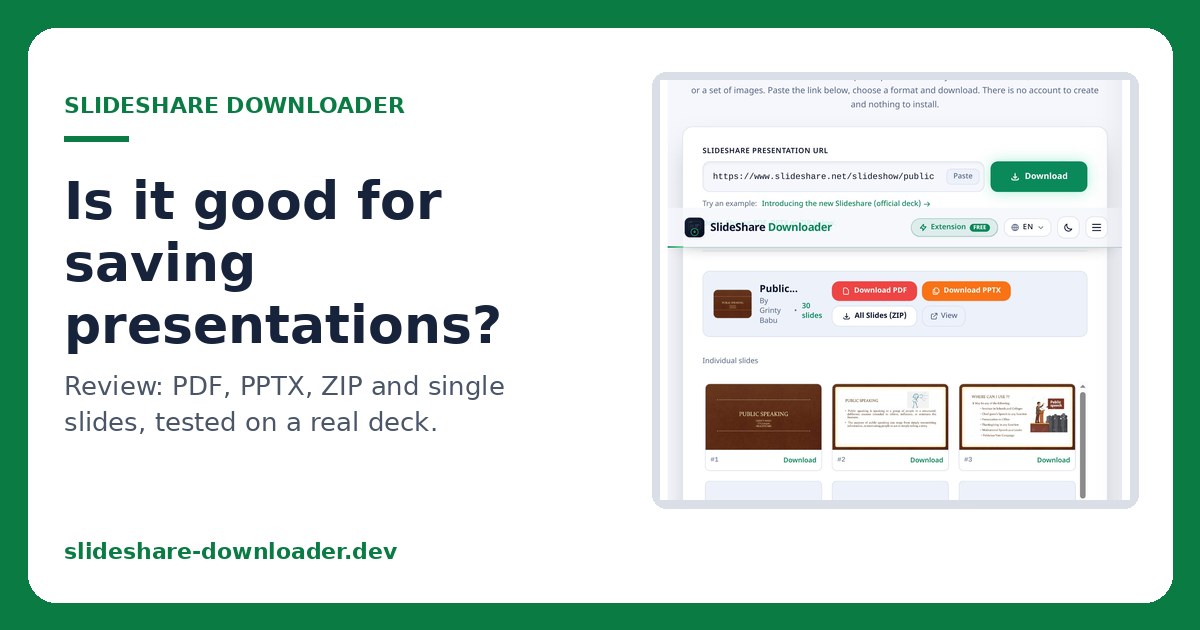
SlideShare Downloader is a free web tool that saves public SlideShare presentations as PDF, PPTX, a ZIP of slide images, or single slides, with no account or install. It is easy to use and the format choice is genuinely useful, but downloads depend on the deck, and PPTX slides arrive as images, not editable text.
Quick verdict
SlideShare Downloader does one job well: it turns a public SlideShare link into a file you can keep. The workflow is short, the result screen shows the deck title, author and slide count before you commit, and the four download options cover the main reasons people save a deck. The limits matter too. A private or restricted deck cannot be saved, the PPTX holds slide pictures rather than editable text, and first-time users may want clearer format explanations. For free offline reference, it is a solid choice. For editing someone else’s slides, it is not the right tool.
What is SlideShare Downloader?
SlideShare is a platform where people publish slide decks, from lecture notes and conference talks to company overviews. Its own download button only appears when the author allows downloads, and it usually requires a signed-in account.
SlideShare Downloader, at slideshare-downloader.dev, is an independent third-party tool. It is not part of SlideShare, LinkedIn or Scribd. You paste the link of a public presentation, and the tool reads the slide images that SlideShare shows to any visitor, then builds a file from them. That is the key limit: it can only save what SlideShare already shows publicly, not private decks or the author’s original PowerPoint file.
How to use SlideShare Downloader
- Open the public SlideShare presentation in your browser.
- Copy its address from the address bar. On a phone, use the share menu and choose copy link.
- Visit slideshare-downloader.dev.
- Paste the link into the box at the top of the page. The Paste button fills it in from your clipboard.
- Press the green Download button. The tool reads the deck and shows its title, author and number of slides.
- Choose PDF, PPTX, All Slides (ZIP), or a single slide, then open the downloaded file to check it.
If the tool reports that a deck cannot be found, first open the link in a new tab. If SlideShare also shows an error, the deck is gone or private, and no downloader can reach it. See the fixes guide for every message, and the free step-by-step PDF guide for a printable walkthrough with real screenshots.
PDF vs PPTX vs ZIP: Which option should you choose?
| Option | Best for | What you get |
|---|---|---|
| Reading, printing and offline study | One page per slide, in the same proportions as the original | |
| PPTX | Presenting, or adding slides to your own deck | One picture per slide, opened in PowerPoint, Keynote or Google Slides |
| All Slides (ZIP) | Using several slides as images | Every slide as a numbered JPG in one archive |
| Single slide | Quoting one slide | The slide you choose, saved as one image |
The PDF is the safest default. It reads well on any device and prints cleanly. The PPTX is useful when you want the deck inside presentation software, but understand what it is: each slide is one image, so you can present it, resize it and reorder it, but you cannot click into the text and edit the words. The ZIP suits anyone who wants slide images for reference, for example to keep a chart or a diagram. Single-slide downloads are the fastest route when only one slide matters.
What works well: the main strengths
The workflow is genuinely short. Copy, paste, press Download, pick a format. There is no account, no install and no payment step in the way, which we confirmed on the live site.
Format choice is the strongest feature. Most downloaders offer one file type. Here the same result screen offers PDF, PPTX, ZIP and single slides, so a student who wants to read and a presenter who wants a deck do not have to use different tools.
Previewing before downloading is practical. The result screen shows the deck title, author, slide count and slide thumbnails, so you can confirm the right presentation before any file is built, and save a single slide instead of a whole deck when only one chart matters.
The honest framing helps too. The homepage states plainly that slides arrive as images, that text cannot be selected from them, and that users should only save decks they are allowed to keep. A tool that states its limits upfront is easier to trust than one that promises everything.
What could be better? An honest look at limitations
Downloads depend on the deck. A private presentation, a deleted deck or a link to a profile page will not work, and that is a property of the source platform, not a bug the tool can fix.
Error messages could be clearer. When a download fails, a first-time user may not know whether the problem is the link, the deck’s permissions or a temporary failure. The troubleshooting guide covers the common messages, but clearer on-screen guidance would help.
Format explanations could be clearer for newcomers, who may not know at a glance whether PDF or PPTX suits their purpose, or that the PPTX holds pictures rather than editable text. The homepage comparison and the free PDF guide now close much of that gap.
The ZIP is less convenient for reading than the PDF, since it is an archive of images you open one by one. And keep quality expectations realistic: the tool saves the largest slide images SlideShare offers, up to 2048 pixels wide, which prints well, but zooming far into a slide will show pixels, because the source itself is a picture.
Real-world use cases
A student revising for an exam saves a lecture deck as PDF and reads it offline. A teacher preparing a permitted classroom session saves a Creative Commons deck as PPTX, presents it, and credits the author on the opening slide. A researcher keeps a conference deck as a ZIP so one chart can be pulled out later. A professional skims the slide thumbnails, finds the pricing slide, and saves only that slide for a meeting pack. These are typical uses, not claims about specific people. The pattern is the same each time: the tool is most valuable when the deck is public, the purpose is reference or study, and the user respects the author’s rights.
User feedback: what one reader told us
The following comments were shared with the site by Benjamin Silver, a reader who described himself as a software engineer in San Francisco. They are reproduced as supplied, and they are the views of an individual user, not of SlideShare or Scribd.
On ease of use and format choice:
“I tried SlideShare Downloader to save a presentation for offline study, and it worked really well. I liked being able to choose between PDF, PPTX, and downloading all the slides as images in a ZIP file. The process was straightforward, and I didn’t need to create an account. It would be even better if the download options were explained a little more clearly for first-time users.”
On study and research:
“What I liked most about this tool is that I could preview the slides before downloading them. The PDF option was useful for reading, while PPTX gave me another format to work with. I also liked having the option to download individual slides instead of the entire presentation. Just keep in mind that results may depend on the presentation and whether downloads are available.”
On convenience and clarity:
“SlideShare Downloader is a handy tool when you want to keep a public presentation for later. I found the interface simple, and having separate buttons for PDF, PowerPoint, and ZIP downloads made choosing a format easy. My only suggestion would be to make the process a little clearer when a presentation cannot be downloaded. Overall, it’s a useful option for saving presentations for offline reference.”
Two suggestions repeat across all three comments: explain the formats better for first-time users, and explain failures more clearly. Both are fair, and both match our own findings. The site’s format comparison table and free step-by-step PDF guide answer the first point, and the troubleshooting guide covers the second.
Is SlideShare Downloader safe and legitimate to use?
We did not run a security audit, and a simple interface is not proof of safety, so we make no blanket claim here. From observation: the tool asks for no password, no payment and no account, and does not ask you to install software, which is a smaller surface for trouble than tools that demand sign-ins or downloads. Still, check every file before opening it, and be wary of any site that asks for your SlideShare password. This site does not.
On legitimacy, the key point is the author’s rights. Saving a public deck for your own study is low risk in many places. Republishing, selling or presenting someone else’s slides as your own is different, and it can break copyright law. A Creative Commons licence may allow sharing, but only on its terms, which usually include crediting the author. Downloading a file never grants permission to reuse its contents. See downloading SlideShare presentations without login and the safety sections on the homepage.
Frequently asked questions
Is SlideShare Downloader free to use? Yes, with no account and nothing to install.
Can I download a SlideShare presentation as a PDF? Yes. Paste a public link, press Download, and choose Download PDF. See downloading SlideShare as a high resolution PDF.
Can I download a SlideShare presentation as PPTX? Yes. Each slide arrives as one image, so you can present it but not edit its text. See convert SlideShare to PowerPoint.
Can I save individual SlideShare slides as images? Yes. Every slide in the result has its own Download button, and All Slides (ZIP) saves the whole set at once.
Why might a SlideShare download fail? Usually a private or deleted deck, a link to a profile or search page instead of one presentation, or a typo. The fixes guide matches each message to its cause.
Do I need to install software or create an account? No. The tool runs in the browser, and the site’s browser extension is optional.
Can I edit a downloaded PowerPoint presentation? You can reorder, resize and present the slides, but not edit the text inside them, because each slide is a picture. For editable text, ask the author for the original file, or run the PDF through an OCR tool.
Is it legal to download and reuse someone else’s slides? Downloading for personal study is low risk in many places, but reuse is separate. Follow the deck’s licence, credit the author, and never present another person’s work as your own.
Final verdict
SlideShare Downloader is a good tool for a clear purpose: keeping a public presentation for reading, study, research or reference. It is free, fast to learn, and the choice of PDF, PPTX, ZIP and single slides covers the real ways people use saved decks. The preview step and the absence of any account or install remove the usual friction.
Choose PDF for reading and printing, PPTX when the deck needs to live inside presentation software, and ZIP or single slides when you need images rather than a document. Go in with two limits understood: the deck must be public and reachable, and the PPTX holds slide pictures, not editable text. For students, teachers, researchers and professionals who save public decks for legitimate reference, it earns a recommendation. For anyone hoping to edit or republish someone else’s work, it is the wrong tool, and that is as it should be.
Ishtiaq Turi
Founder and systems architect behind SlideShare Downloader. Researches browser rendering, client-side document processing, and edge media delivery.