
SlideShare Downloader Tutorial (Video)
Watch the 30-second SlideShare Downloader tutorial: paste a public deck link, preview the slides, and save it as PDF, PPTX or ZIP. Free, no account.
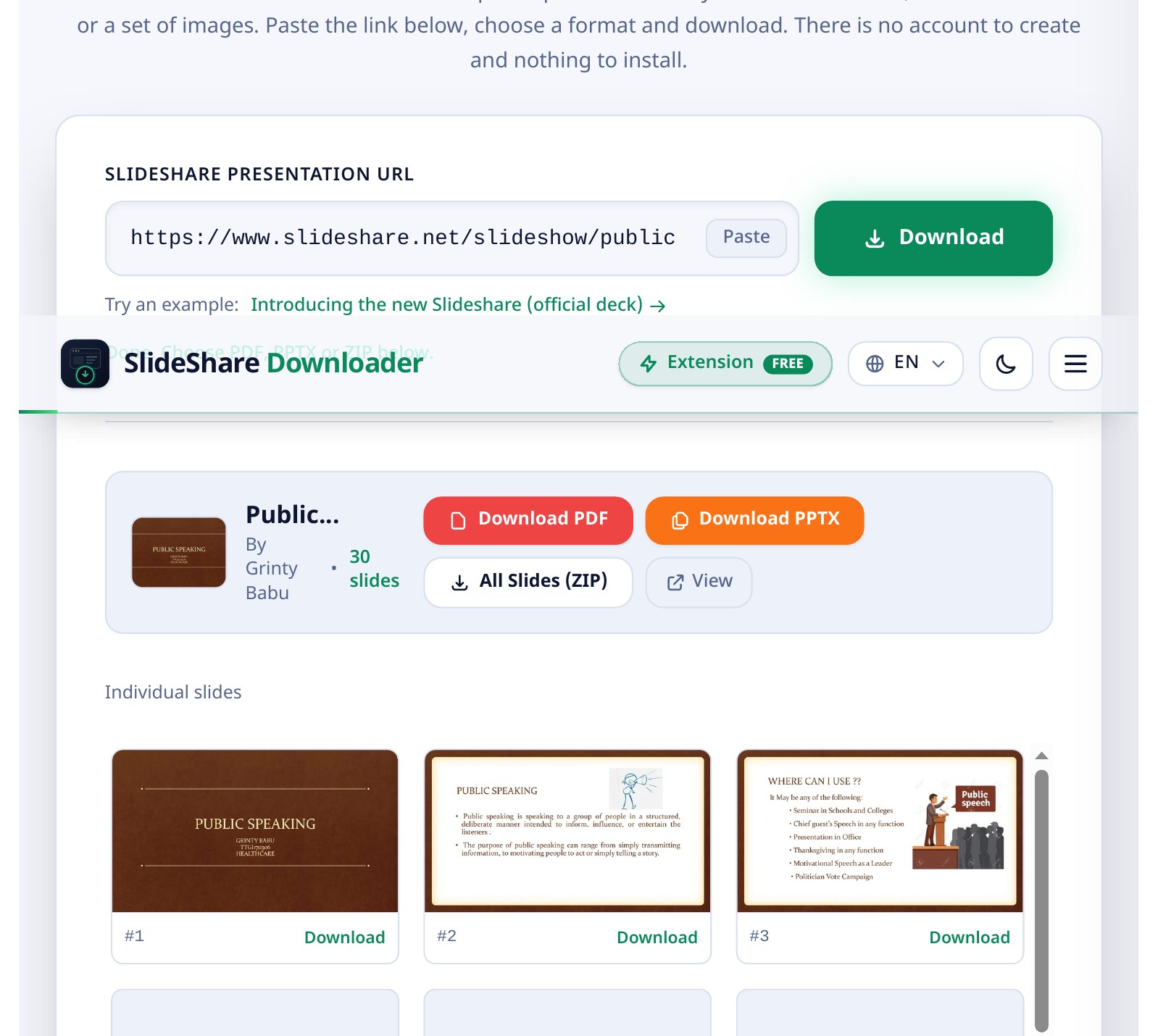
This 30-second video shows the whole workflow on the live tool: open SlideShare Downloader, paste a public presentation link, preview the slides, and pick the format you need. Watch it below, then read the step-by-step breakdown and the transcript underneath.
What the video shows
- Open the tool. Go to SlideShare Downloader in any browser. There is nothing to install and no account to create.
- Paste the SlideShare link and preview the slides. Copy the address of a public presentation, paste it into the box at the top of the page, and press Download. The tool reads the deck and shows its title, author and number of slides, with a preview of the slides.
- Pick your format. The result screen says “Done. Choose PDF, PPTX or ZIP below.” Choose Download PDF, Download PPTX, All Slides (ZIP), or View, or save a single slide from the individual-slide grid below the buttons.
Transcript
This is a step-by-step summary of what the video shows, not a word-for-word transcript of the narration.
- Title card: “How to Download SlideShare Presentations as PDF or PowerPoint”, with the line “Step by step, using SlideShare Downloader”.
- Step 1, Open the tool: the SlideShare Downloader homepage, with the link box empty and ready. There is no sign-in or install step.
- Step 2, Paste the presentation link: a public SlideShare link pasted into the box, then the Download button pressed. The result screen appears with the deck title, author and slide count, and a preview of the slides.
- Step 3, Choose your format: the four download options on the result screen: Download PDF, Download PPTX, All Slides (ZIP), and View, plus the individual-slide grid for saving one slide at a time.
- End card: “slideshare-downloader.dev”, with the line “Only save decks you are allowed to keep, and always credit the author.”
Which format should you choose?
Pick the format by what you plan to do next. PDF is best for reading, printing and sharing. PPTX is best for presenting or adding slides to your own deck, but remember each slide arrives as one picture, not editable text. A ZIP of JPG images is best when you want to reuse several slides as images, and a single slide is best when you want to quote just one. For the full written walkthrough, read our guide on how to download SlideShare as a high resolution PDF or how to convert SlideShare to PowerPoint (PPTX).
Frequently asked questions
Is SlideShare Downloader free to use?
Yes. Every format is free, with no account and no software to install. You paste a public link and get your file.
PDF, PPTX or ZIP: which should I choose?
PDF is best for reading, printing and sharing. PPTX is best for presenting or adding slides to your own deck, with each slide as one picture. A ZIP is best when you want every slide as a separate JPG image to reuse.
Can I edit the downloaded PowerPoint file?
No. Each slide in the PPTX is one image, because SlideShare shows slides as pictures. You can present the file, but you cannot select or edit the text. Ask the author for the original file if you need editable text.
Why might a download fail?
The link must point to one public presentation. Private decks cannot be saved, a deleted deck returns “Presentation was not found”, and download links expire after 30 minutes, so paste the link again for a fresh one. Our guide to SlideShare download not working fixes covers more cases.
Do I need an account or software?
No. The tool runs in the browser. There is no sign-up and nothing to install.
Is it legal to download SlideShare presentations?
It depends on the deck’s copyright and what you do with the copy. Keeping a copy for personal study is low risk in many places, and you should always credit the original author. Read our full guide on whether it is legal to download SlideShare presentations for the detail.
Try it yourself
Use the free tool on the homepage, or take the same steps as a free step-by-step PDF guide you can save, print or share. The video above is also on our YouTube channel.
Ishtiaq Turi
Founder and systems architect behind SlideShare Downloader. Researches browser rendering, client-side document processing, and edge media delivery.